Lab 2.2 – Discover BIG-IP Devices
In order for iWorkflow to interact with a BIG-IP device it must be discovered by iWorkflow. The device discovery process leverages the existing CMI Device Trust infrastructure on BIG-IP. Currently there is a limitation that a single BIG-IP device can only be ‘discovered’ by ONE of iWorkflow or BIG-IQ CM at a time. In this lab will we discover the existing BIG-IP devices from your lab environment.
Task 1 – Discover BIG-IP Devices
Perform the following steps to complete this task:
Expand the “Lab 2.2: Discover & License BIG-IP Devices” folder in the Postman collection
Open a Google Chrome window/tab to your iWorkflow device (https://10.1.1.6) and login with default credentials (admin/admin). You can use this window to monitor actions while they are being performed in Postman. Find the ‘Devices’ pane and make if viewable if it isn’t already.
Click the “Step 1: Discover BIGIP-A Device” item in the Postman collection. This will request will perform a POST to the
/mgmt/shared/resolver/device-groups/cm-cloud-managed-devices/devicesworker to perform the device discovery process. Examine the JSON body so you understand what data is sent to perform the discovery process: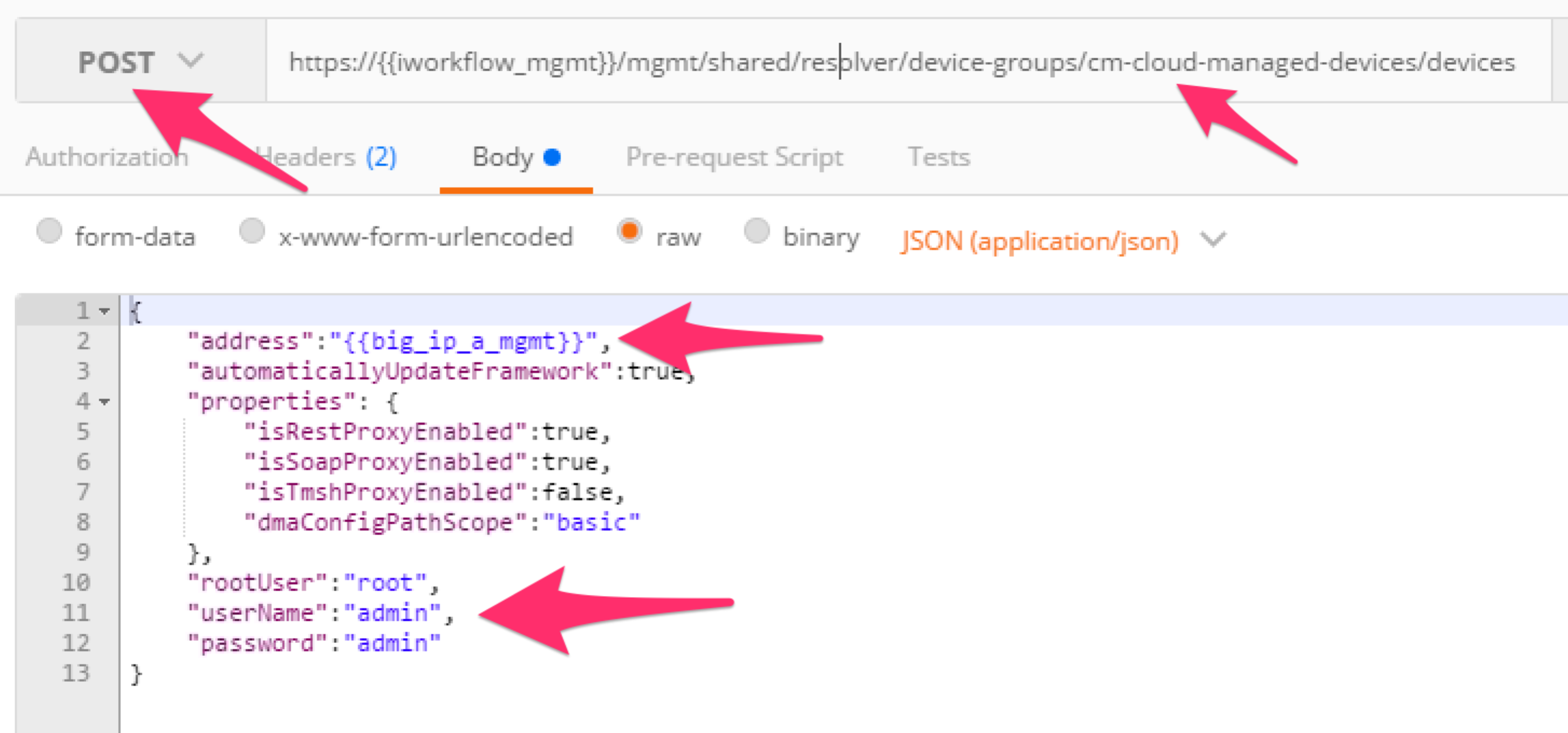
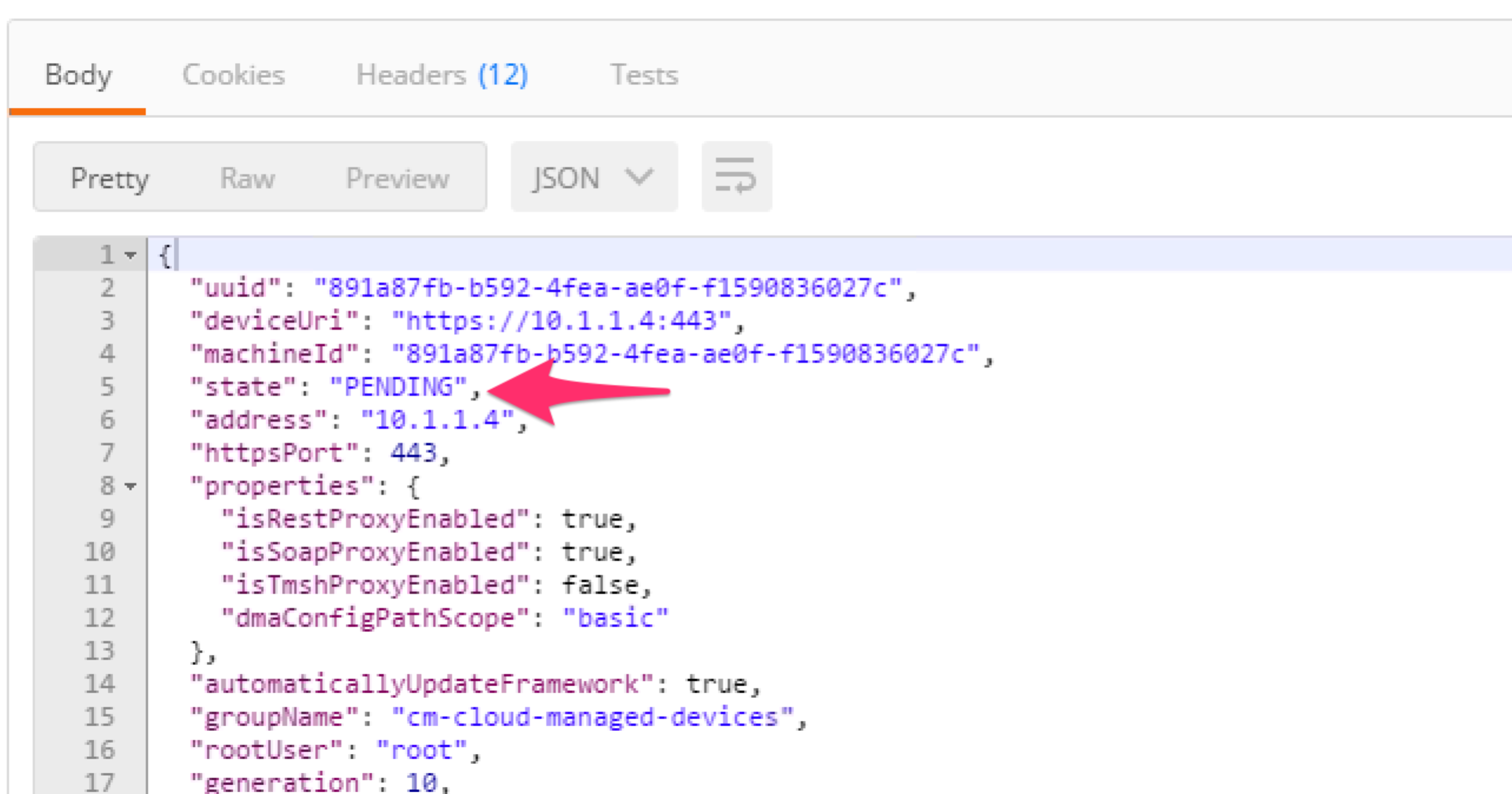
Click the ‘Send’ button. Examine the response and monitor the iWorkflow Chrome window you opened previously.
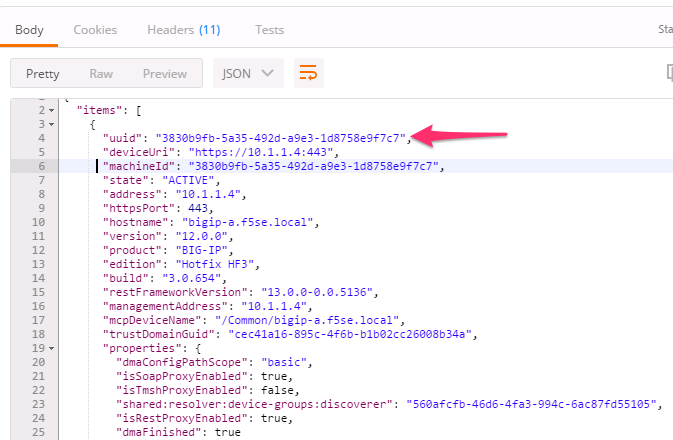
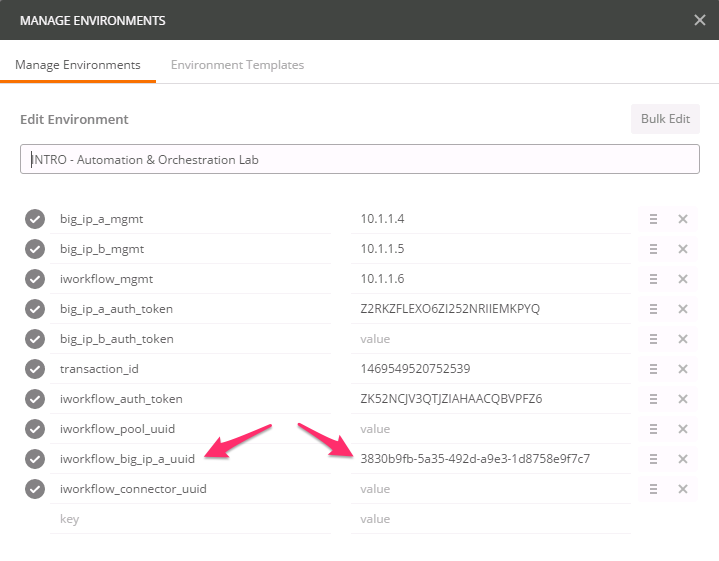
Copy the ‘uuid’ attribute for BIGIP-A and populate the ‘iworkflow_big_ip_a_uuid’ Postman environment variable with the value:
Repeat steps 1-4 with the “Step 2: Discover BIGIP-B Device” item in the collection.
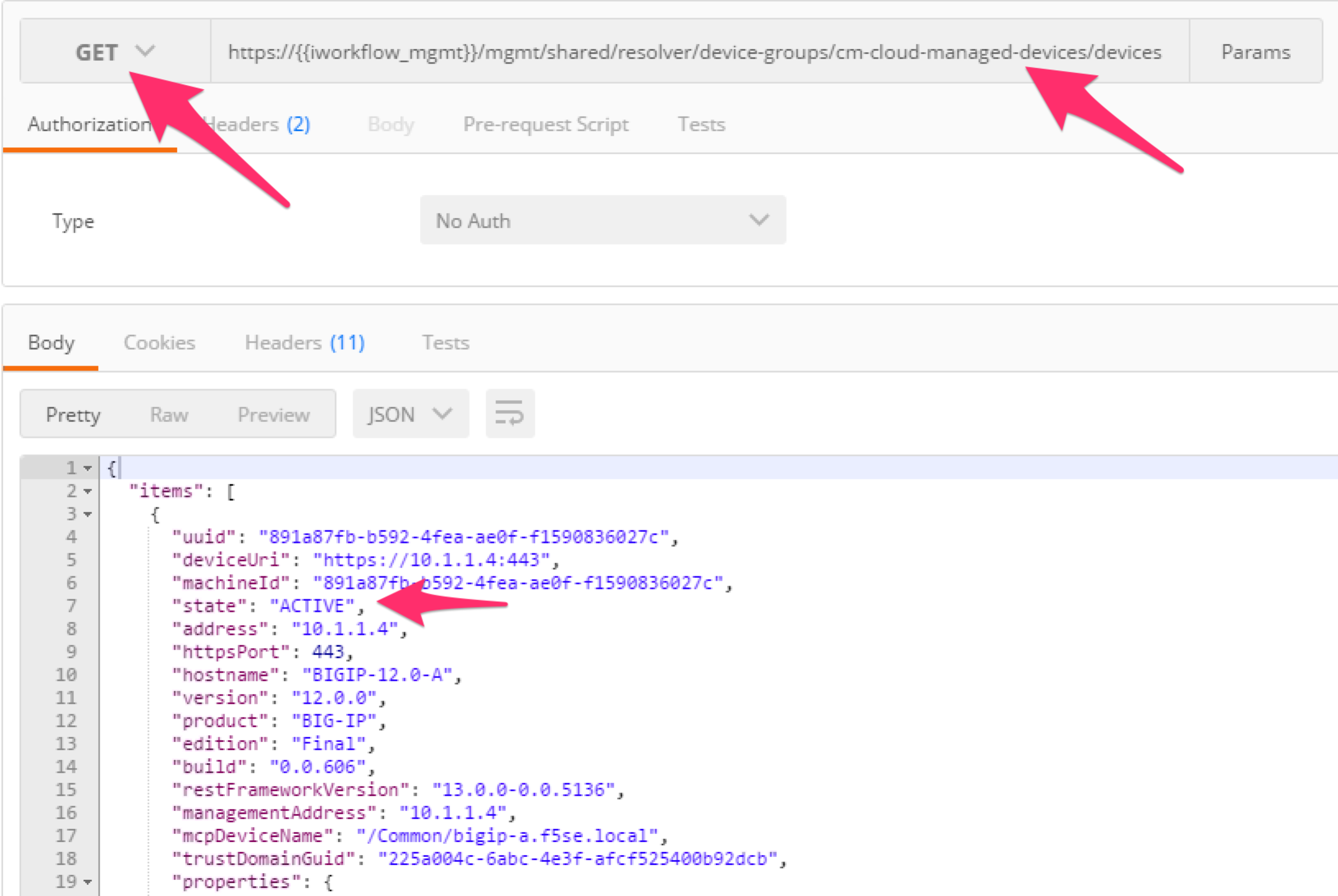
Click the “Step 3: Get Discovered Devices” item in the collection. We will GET the devices collection and verify that both BIG-IP devices show a ‘state’ of ‘ACTIVE’: